
WinSync mirrors your Windows system audio to a second output device — wired, Bluetooth, or USB — with per-device delay and drift correction, so nothing goes stale or drifts apart over a two-hour movie.
Windows 10/11 · installs the .NET runtime automatically if needed · free & open source
Windows may show a SmartScreen warning on first run — that's expected for an unsigned app, not a virus alert. See how to run it anyway →


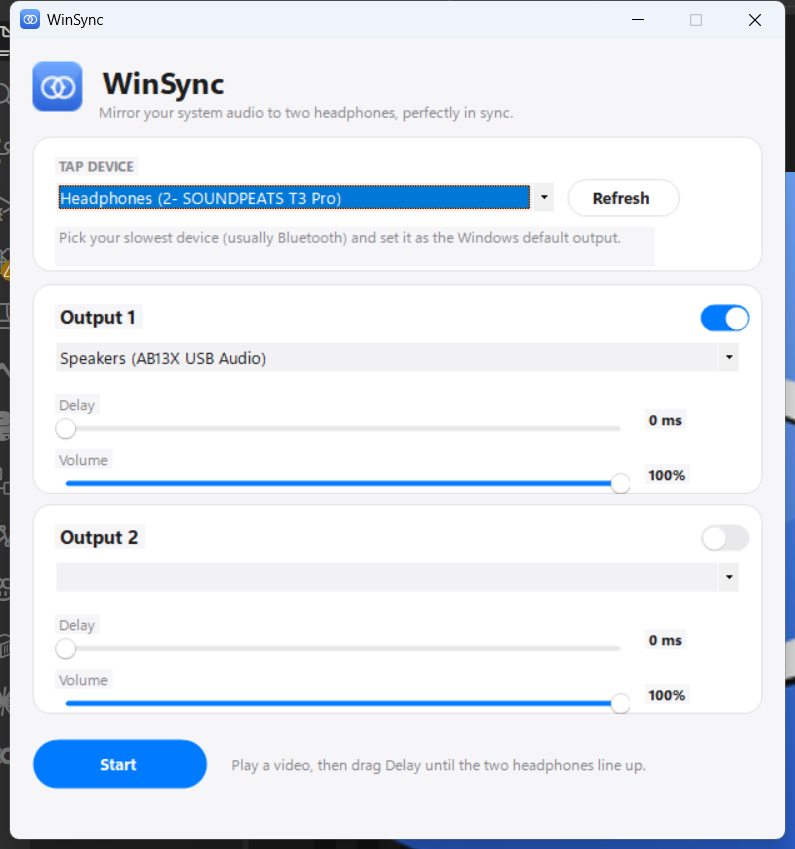
Windows routes system audio to one output at a time. There's no built-in way for two people to share one laptop through two pairs of headphones — until now.
Wired + Bluetooth is the common case, but any two WASAPI output devices work.
Bluetooth adds 150–250ms of latency. A slider lets you compensate exactly.
Two devices never share a clock. A continuous ±0.3% speed nudge keeps them locked for hours, with no clicks.
Pure user-mode WASAPI loopback. No kernel driver, no code-signing certificate, no elevation prompt.
Tap one endpoint with WASAPI loopback capture, re-render the stream to any number of others.
The key trick: loopback capture happens inside the Windows audio engine, before the signal reaches the Bluetooth radio — so the captured copy is never delayed by Bluetooth. Tap the slowest device, delay the faster one to catch up. Read the full design writeup →
Wired + Bluetooth is the most common setup:
1. Connect both headphones.
2. Set your slowest device (usually Bluetooth) as the Windows default output — see below.
3. In WinSync, set Device 1 to that same device. It's already playing — no delay needed there.
4. Turn on Device 2, set it to your other headphone, and press Start.
5. Play a video, then drag Device 2's Delay slider until they line up (usually 120–250ms for Bluetooth).
Setting the default output device (step 2):

In the taskbar, next to the clock.

Click the small arrow next to the speaker icon, then choose it from the list.
A quick reminder built into WinSync itself: the ? button next to "Check for Updates" opens this same guide inside the app. Full instructions, known limitations and troubleshooting are in the README.
That's Microsoft Defender SmartScreen, and it's expected — WinSync isn't digitally signed yet (working on that for free via SignPath). It's not a virus warning, just an "unrecognized publisher" notice. Here's how to run it anyway:

The small link under the warning text — easy to miss.

The dialog expands to show the app name and this button appears.